Automator Cleaning & Backup Script
, Demodern

Who doesn't know it. The desktop becomes increasingly cluttered, and the number of screenshots and files cries out for a cleanup. For this, I wrote a simple Automator script for myself to tidy up the desktop at the push of a button and archive the files in a defined location, even just before a presentation.
I also use this Automator script to quickly and easily record interim work stages in a backup folder during work. Here, the files are not removed but only archived and placed in a chosen location. Of course, like many digital agencies, we also work with Subversion and a repository. Nevertheless, I have found that I don't want to push every work stage but also want to quickly store them in between. Attached you will find the script, which you need to customize for your use with Automator. Below, I describe the settings, which can be adjusted for each case in less than a minute.
Setup
The "CleanDesktop" script moves all files from the desktop into a "_latest" folder within the self-chosen target folder for the desktop files to be archived. The contents of the "_latest" folder are then archived and placed in a "_archive" folder also within the target folder. The "_latest" folder is only moved to the trash upon the next execution, so you can still access the last files uncompressed in case of incorrect use.
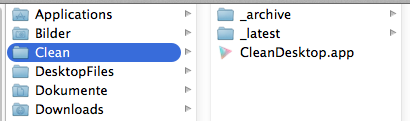
Here is a shot of my "Clean" folder in my user folder:
Automator Workflow
Below is the Automator workflow once you have opened the script in Automator.
Important: First change the settings and target folders and test the script so you don't accidentally move files.
Here are the important steps marked to use the script for your own purposes.
First, the target folder for the desktop files must be created, and within it, the folders "_latest" and "_archive". In my case, the folder is called "Clean" and is located in my user folder. Of course, don't place it on the desktop ;)
The Automator script:
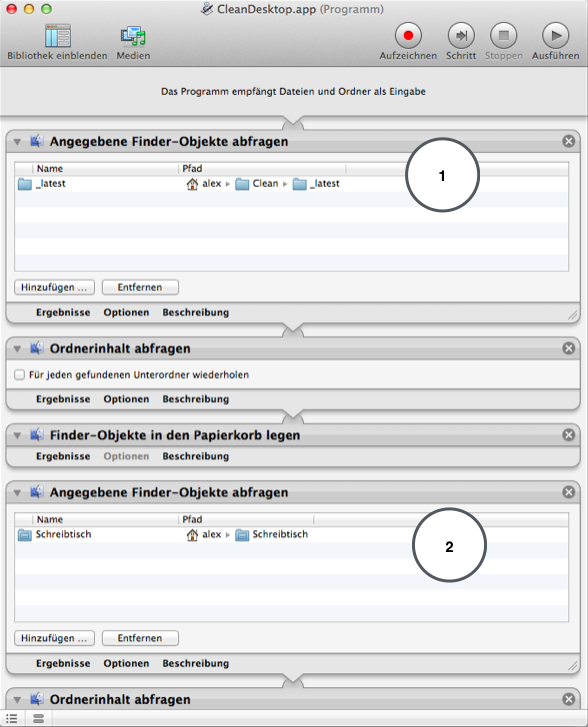
- "Ask for Finder Items" – Select the "_latest" folder in the "Clean" folder here. This is where the folder is emptied if something from the last cleaning is still present.
- Select the desktop – The folder you want to clear/archive.
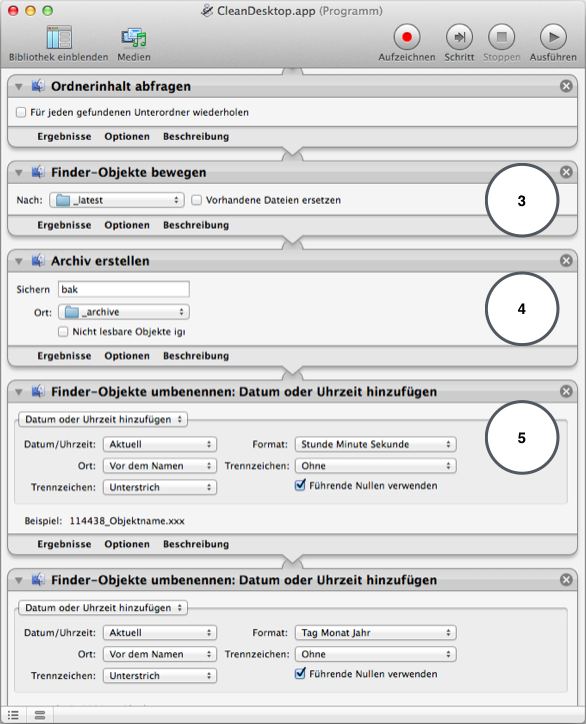
3. Select the "_latest" folder again here. This is where the desktop files are moved.
4. Create a file name for the archive here. In this case, "bak" and select the target location of the archive "_archive".
5. The archive is labeled with the date and time here to avoid duplicates.
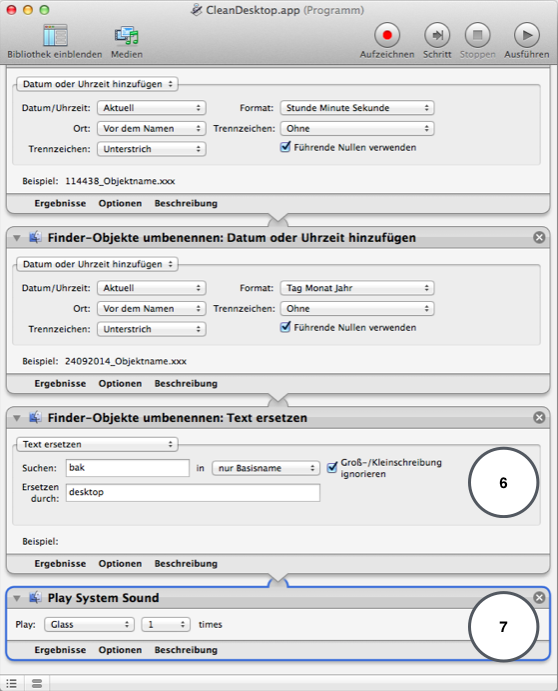
6. Here, the archive label "bak" is renamed to "desktop".
7. A system sound is selected here, which is executed upon completion of the script.
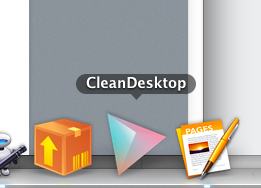
Finally, save the script. You can then drag it to the dock for direct access.
Below you will also find the backup script to secure work stages. Here, the files are not moved but queried and archived. You only need to adjust the target folders for each use.
Here are the scripts for download: